
What Is an IDE? A Plain-English Guide for Beginners
If you’ve started learning to code, you’ve probably seen instructions like “open your IDE” or “run this in VS Code” — and felt a little lost. You’re not alone. This guide explains exactly what an IDE is, why it exists, and how it helps you write and run code, using plain language and zero assumed knowledge.
What Is an IDE?
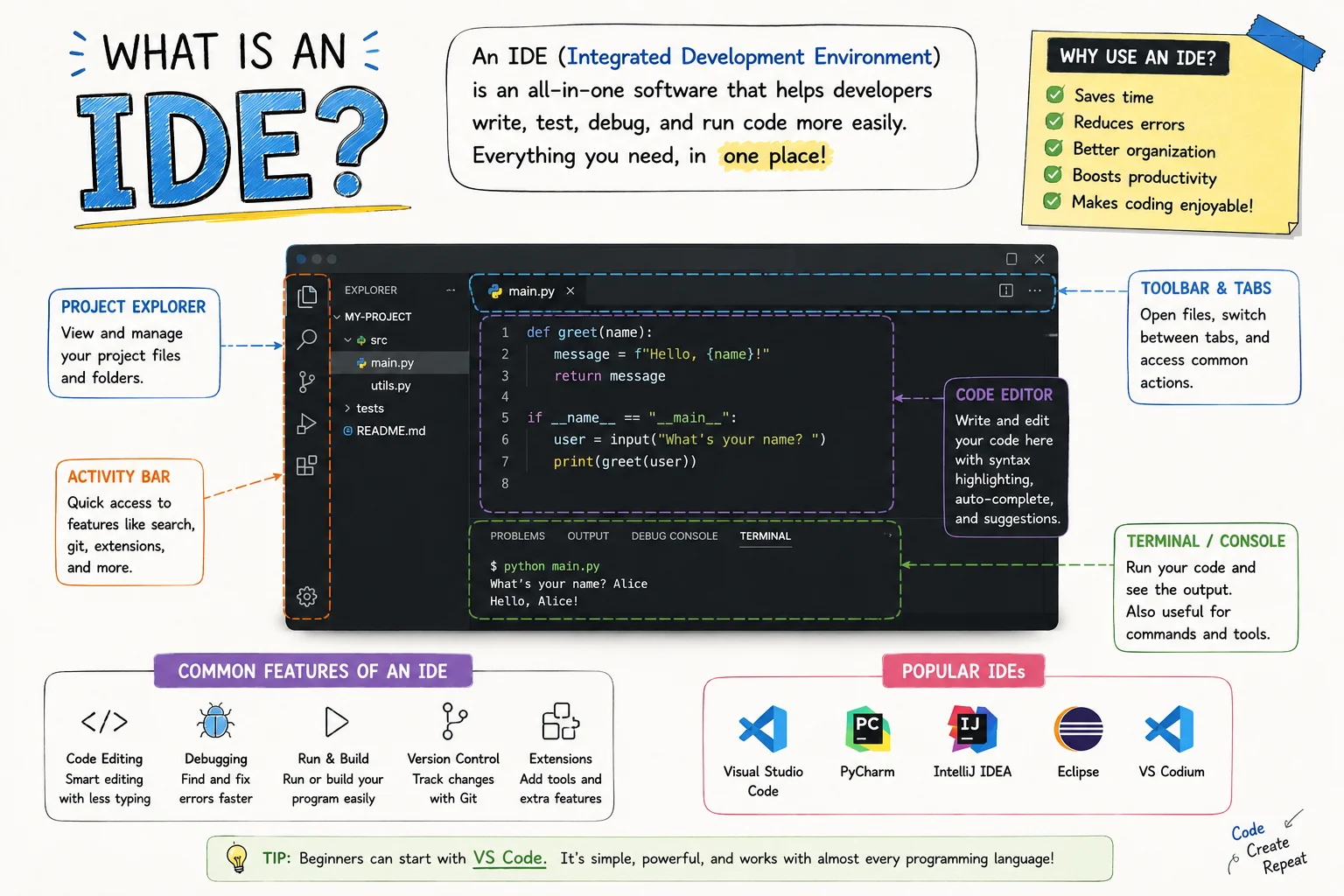
IDE stands for Integrated Development Environment. That’s a long, technical-sounding name for something simple: it’s a piece of software where you write, run, and fix your code, all in one place.
Think of “integrated” as meaning “everything working together.” Instead of opening one program to write code, another to run it, another to manage files, and another to debug errors, an IDE combines all of those tasks into a single workspace. You can write functions, test loops, organize files, and fix mistakes without constantly switching between different programs just to write a simple line of code.In short: an IDE is your coding workspace. It’s where the actual work of programming happens — including writing your source code (the human-readable instructions you type), running it, and fixing it when something breaks.
Why It Matters
Every programmer, from absolute beginners to senior engineers at big tech companies, uses an IDE (or something similar) every single day. Understanding what it is and what it does removes one of the biggest sources of early confusion for new coders: not knowing whether the thing they downloaded is “the right tool” or how it relates to the programming language they’re trying to learn.
Once this clicks, a lot of other confusing instructions in tutorials suddenly make sense — like why a YouTube tutorial says “open your terminal” or “click run” inside the editor window.
Some of the most widely used IDEs today include Visual Studio Code (VS Code), PyCharm, IntelliJ IDEA, Eclipse, Xcode (for iPhone and Mac apps), and Android Studio (for Android apps). You’ll likely encounter several of these names early in your learning journey, often tied to a specific programming language or platform.
Real-Life Analogy
Imagine you want to cook a meal. You could do it with just a knife — that gets you something, but it’s slow and limited. Or, you could cook in a fully equipped kitchen: knife, stove, oven, timer, and a sink, all in one room, ready to go.
A plain text editor (like Notepad) is the knife. It lets you write code, but nothing else. An IDE is the full kitchen — it gives you the editor (to write), the “stove” (to run your code), and the “timer and thermometer” (to catch mistakes), all without leaving the room.
💡 You don’t need the fanciest kitchen to cook your first meal — and you don’t need the most powerful IDE to write your first program. Start simple.
How an IDE Works
An IDE isn’t one single tool — it’s several tools working together behind one interface. Here’s what’s usually inside:
- Code editor — the text area where you actually type your code. It usually includes syntax highlighting (color-coding different parts of your code so it’s easier to read) and autocomplete (sometimes called IntelliSense), which suggests how to finish what you’re typing.
- Compiler or interpreter — the part that translates your code into instructions the computer can actually run. (A compiler translates the whole program at once before running it; an interpreter translates and runs it line by line.)
- Debugger — a tool that helps you pause your code, look inside it while it’s running, and find exactly where something went wrong.
- Linter — a built-in checker that flags messy or risky code as you type, before you even try to run it.
- Terminal/console — a small built-in window that shows your program’s output, and lets you type commands directly.
- Build tools and version control integration — many IDEs can also package your finished code (a “build”) and connect directly to Git, a tool for tracking changes to your project over time, so you don’t need a separate app for either.
When you click “Run” in an IDE, here’s the simplified flow: the editor hands your code to the compiler/interpreter → it gets translated → the result shows up in the terminal/console panel. If something’s wrong, the debugger helps you find exactly where.
Visual Explanation
Here’s a simplified breakdown of what you’d typically see on an IDE’s screen:
Shows your project’s files and folders, like a file cabinet.
The main area in the center — this is where you type your code.
Usually at the bottom — shows your program’s output after you run it.
A panel that highlights variable values and errors when something breaks.
Different IDEs arrange these panels differently, but almost all of them include some version of these four areas.
Local IDEs vs. Online IDEs
So far, this guide has described IDEs you install on your own computer — but there’s a second category worth knowing: online (or cloud) IDEs, like Replit or GitHub Codespaces. These run entirely in your web browser, so there’s nothing to install. You write and run code on a remote server instead of your own machine.
For absolute beginners, online IDEs can be a great starting point — especially if you’re on a slower computer or just want to try coding without committing to a full installation yet. Once you’re comfortable, switching to a local IDE gives you more control and works without needing an internet connection.
Code Example: With an IDE vs. Without One
Let’s look at the same tiny program — one that just prints a greeting — and compare what the experience looks like with and without an IDE.
Inside an IDE (Python)
# This line prints text to the screen
print("Hello, beginner!")
In an IDE, you’d type this in the editor panel, click “Run,” and immediately see Hello, beginner! appear in the built-in terminal — all in the same window.
Without an IDE
# Step 1: Write this in a plain text editor, save as hello.py
print("Hello, beginner!")

# Step 2: Open a separate terminal app and type:
python hello.py
Without an IDE, you’d write the code in a basic text editor, save the file, then manually open a separate terminal program and type a command to run it. It still works — it’s just more steps, and easier to mess up when you’re just starting out.
Common Mistakes Beginners Make
- Thinking an IDE is a programming language. It’s not — it’s the tool you use to write and run a language like Python or JavaScript. The IDE and the language are two separate things.
- Installing several IDEs “just in case.” This usually just creates confusion. Pick one, learn it, and switch later only if you have a real reason to.
- Confusing a code editor with a full IDE. Tools like base VS Code start as code editors, but become IDE-like once you add extensions for running and debugging code. The line between “editor” and “IDE” is blurrier than it sounds.
- Believing you must master the IDE before learning to code. You only need to know enough to write, run, and read errors — the rest you’ll pick up naturally over time.
⚠️ It’s easy to spend hours comparing IDEs before writing a single line of code. Don’t fall into this trap — almost any beginner-friendly IDE will work fine to get started.
Best Practices
- Choose an IDE based on the language you’re learning, not based on what looks the most advanced. For example, VS Code works well for most beginners across many languages.
- Stick with one IDE long enough to get comfortable. Switching too early resets your learning curve for no real benefit.
- Learn a few keyboard shortcuts early — like running code and opening the terminal — since you’ll use them constantly.
- Add extensions gradually, only when you actually need a feature, instead of installing everything on day one.
FAQ
What does IDE stand for?
IDE stands for Integrated Development Environment — a single application that combines a code editor, a compiler or interpreter, and a debugger.
Is VS Code an IDE or a code editor?
By default, VS Code is a lightweight code editor. It becomes IDE-like once you add extensions that let it run, debug, and manage projects — which is why many people call it an IDE in practice.
Do I need an IDE to start coding?
Not strictly — you could use a plain text editor and a separate terminal. But an IDE makes the process much easier for beginners by combining everything into one window.
Is an IDE the same as a compiler?
No. A compiler is just one part of an IDE. The compiler (or interpreter) translates your code into something the computer can run; the IDE is the larger environment that contains the compiler along with the editor, debugger, and terminal.
Which IDE should I choose as a beginner?
Visual Studio Code is a solid, free choice for most beginners across many languages. If you’re learning a specific language like Python or Java, language-specific options like PyCharm or IntelliJ IDEA are also beginner-friendly.
Can I code using an online IDE instead of installing one?
Yes. Online IDEs like Replit or GitHub Codespaces run in your browser, so there’s nothing to install. They’re a convenient way to start coding right away, though most developers eventually move to a local IDE for more control.
Summary
An IDE is the all-in-one workspace where coding actually happens — it combines an editor, a translator (compiler/interpreter), and a debugger into a single tool. Instead of juggling multiple separate programs, beginners can write, run, and fix code in one place. Understanding this early removes a lot of unnecessary confusion when following tutorials or setting up your first coding environment.
Key Takeaways
- IDE = Integrated Development Environment, a tool that combines an editor, compiler/interpreter, debugger, and more into one place.
- An IDE is not a programming language — it’s the tool you use to write one.
- The “kitchen vs. knife” analogy: a basic editor is the knife; an IDE is the full kitchen.
- Most IDEs share core areas: sidebar, editor, terminal, and debugger — plus features like syntax highlighting and autocomplete.
- Online IDEs like Replit let you code in your browser with nothing to install — a useful starting point before moving to a local IDE.
- Don’t overthink your IDE choice early on — almost any beginner-friendly option will work.